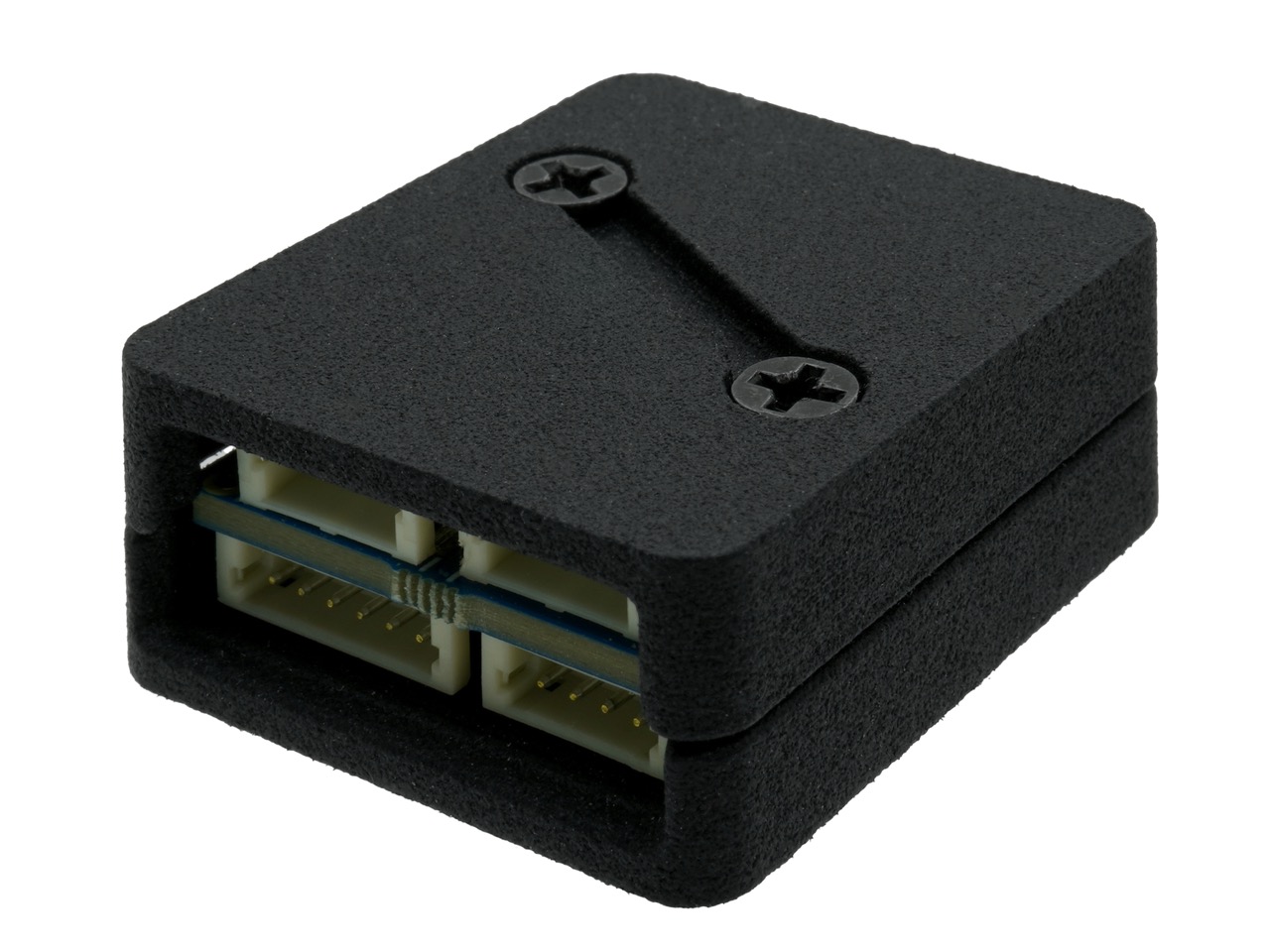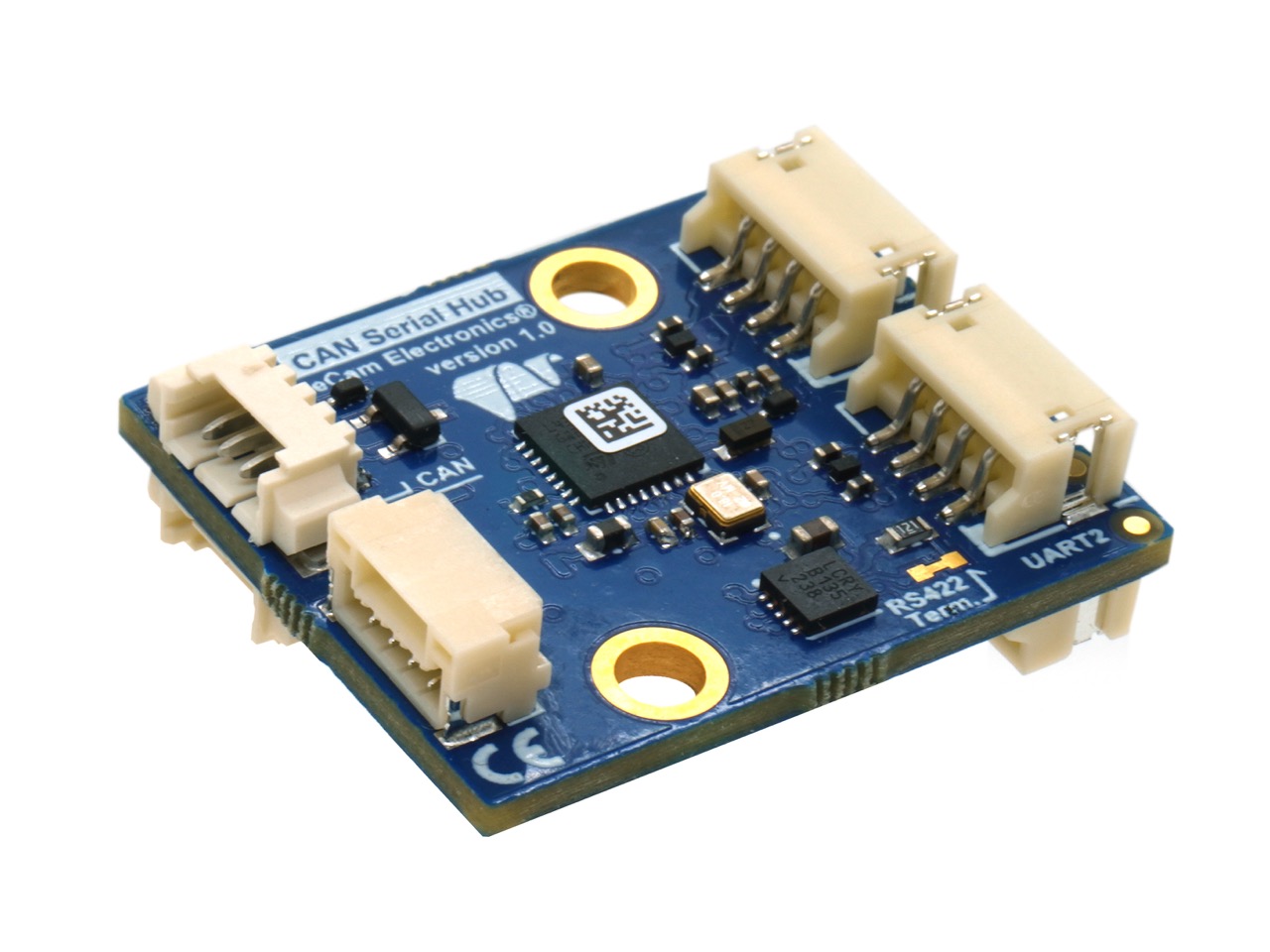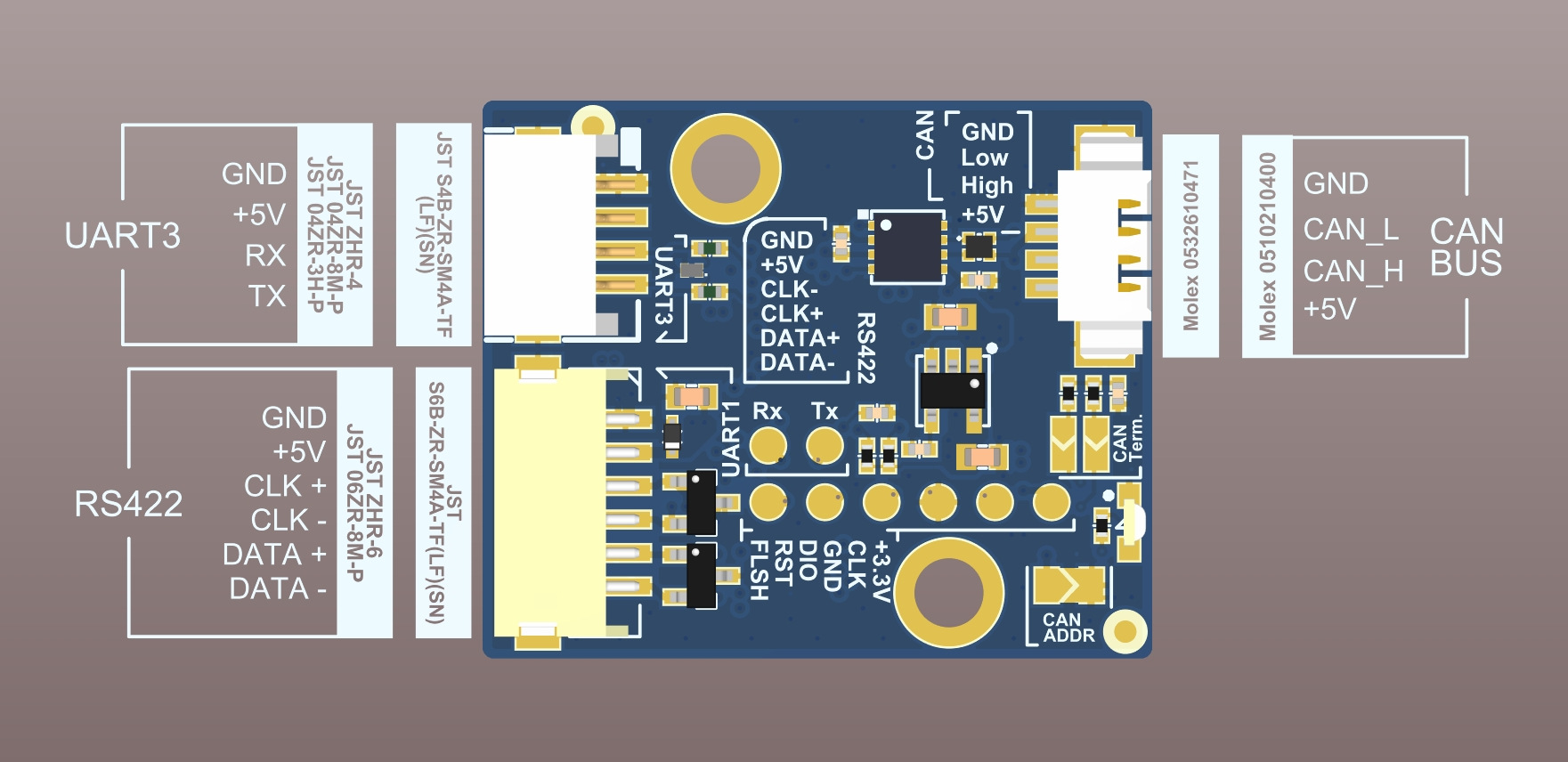
Serial-over-CAN Hub
This module is designed for reliable transmission of serial data over a common CAN bus* that interconnects all gimbal modules, significantly simplifying system wiring. Data input and output are supported via a
* The functionality is available exclusively in the Extended family of controllers equipped with a CAN port.
Key Features:
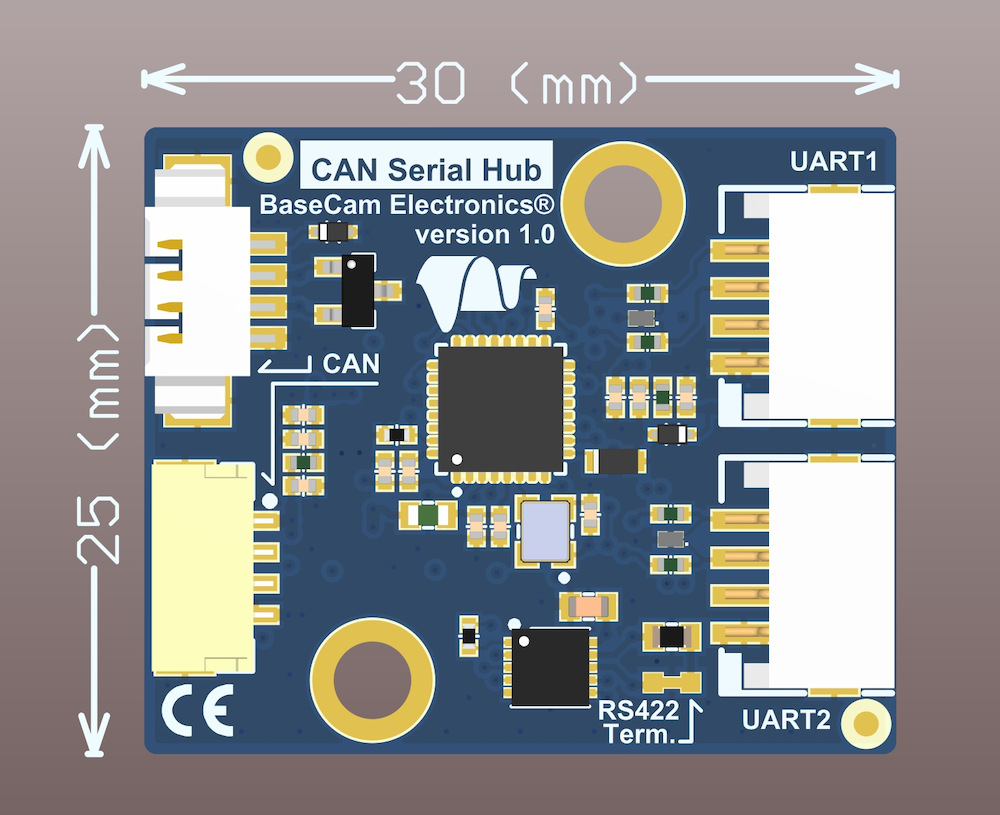
- Compact form factor (PCB 30 x 25 mm)
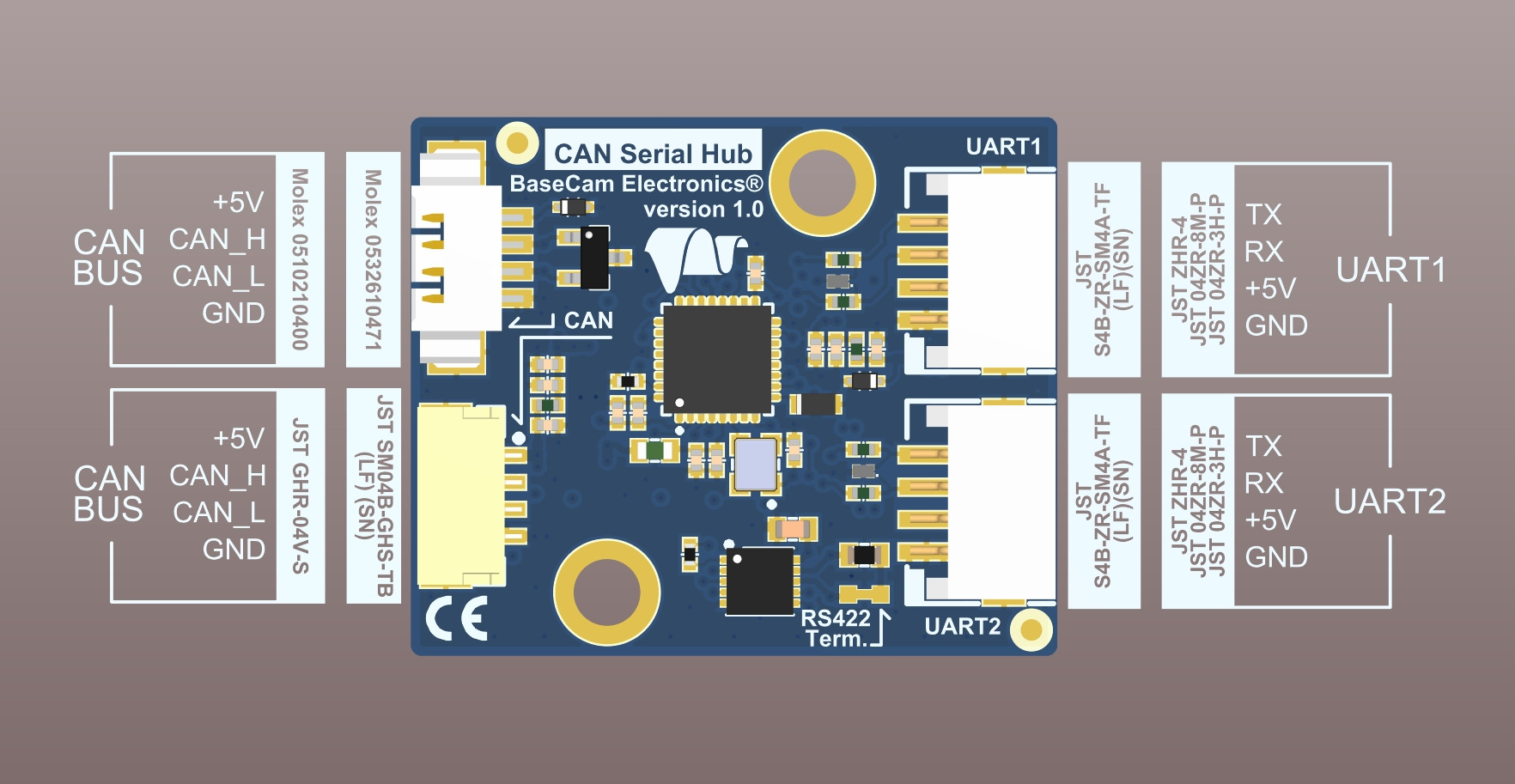
- Three UART ports capable of simultaneous operation
- One UART port duplicated to an RS-422 interface for
long-range wired connections - Support for two types of CAN connectors (legacy and new generation)
How to use
The link should be configure in the BaseCam GUI - "Service" tab - "Serial Link over CAN" section.
- Select an empty slot
- For "Serial port", select "CAN_Serial_hub1/2"* and its physical port**.
- Configure its baud rate and parity
- For "Function", select "Transparent serial"
- For "Target port", select the 2nd endpoint of the link
- For the 2nd endpoint, repeat the configuration in another free slot, selecting the current Serial HUB port as a "Target port"
- Press "CHECK CONFIGURATION" button. If there are no errors - write settings to the controller; they are applied after restart.
* The addressing "CAN_Serial_hub1" or "CAN_Serial_hub2" is defined by the "CAN ADDR" soldered jumber on bottom side of PCB
** For Port2, either TTL or RS-422 can be used.
Resources
Firmware
CAN Serial Hub / GPS_IMU Split.Receiver firmware v.1.04 (34Kb 15.07.2025)
- Bugfix: a small number of GNSS data packets might be missed
How to upgrade firmware in CAN modules
Connect the module by CAN interface to the board, connect the board to a PC, and run SimpleBGC32 GUI. It's better not connect a battery (except for the CAN_DRV module, which doesn't take power from the CAN bus).
- Go to "Upgrade" tab, open "Connected modules" tab. Press the "Refresh" button to reload module information.
- Select a required module from the list. GUI will show the current hardware, firmware, and bootloader versions for each module (except for GUI prior to 2.62, which shows only hardware and bootloader versions).
- Browse for the file containing new firmware. Be careful, flashing an improper file will make the device "bricked" and it will be hard to make it alive.
- Press the "Flash" button to write firmware.
- Restart the main controller to let it see the changes.
- Connect GUI and repeat steps 2 and 3 to check that the new firmware is working and the whole system operates normally.